
# Task List: Keep Track of Structure and Progress
Keywords: Task list, to-do list, project management, prioritization, task management, action items
# Efficiently manage, assign, and prioritize tasks
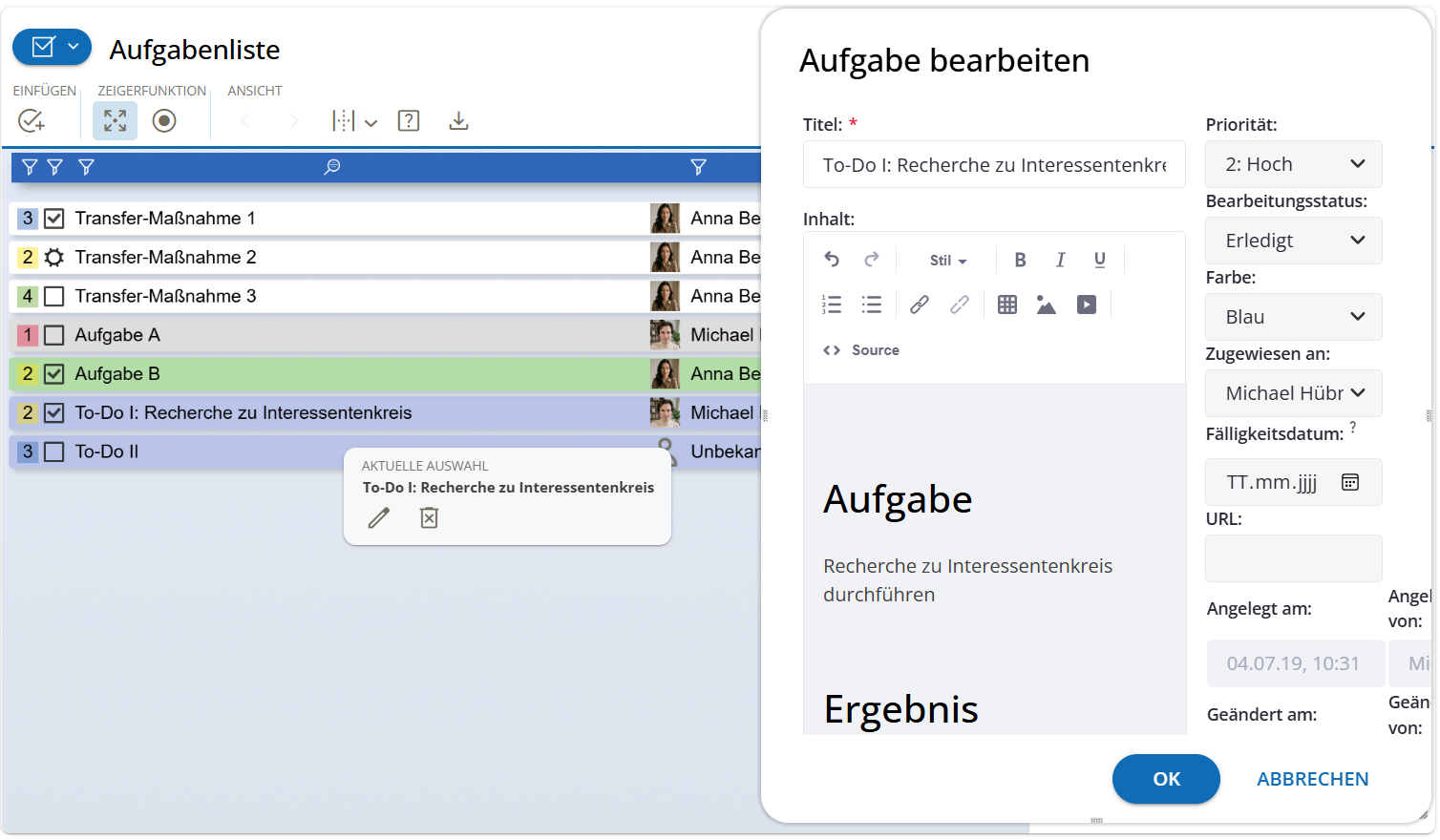
The To-do List is your central instrument for maintaining an overview of all to-dos within a session or project. It allows you to describe tasks in detail, define responsibilities, and update the processing status transparently at any time.
# settings_suggest Tool-Specific Functions
In addition to general tool functions, the Task List offers specialized buttons for efficient task management:
- add_task Add Entry: Create a new task. Here you can directly define all details such as description, priority, and responsibility.
- chevron_left chevron_right Paging: If there are more tasks than can be displayed on one page, you can easily navigate through the list.
- download Download Content: Export your entire task list as an Excel spreadsheet with a single click for local processing or archiving.
# edit_note Anatomy of a Task
Unlike simple text cards, a task in the list provides structured information:
- Title: A concise short description of the task.
- Content: A field for formatted text that offers significantly more space for detailed explanations than conventional cards. You can enter long descriptions directly or via copy-paste from other documents.
- Priority & Status: Define how urgent a task is and whether it is "Open," "In Progress," or already "Completed."
- Color: Use color coding for visual categorization.
- Assignment & Due Date: Assign the task to a person and set a binding due date.
# search Search and filter_alt Filtering
For extensive lists, the integrated search and filter functions help you stay focused:
- Search: The search search field scans both the titles and the content of all tasks in real-time.
- Filtering: Click on the filter_alt filter icons in the column headers to display only tasks with specific properties (e.g., only tasks with the status "In Progress").
- Tip: Hold the Shift or Ctrl key to select multiple filter criteria at once.
# notifications_active Automatic Notifications
To ensure no deadline is missed, the tool features an integrated reminder function:
- Email Reminder: If a task with a due date is assigned to a person, that person automatically receives an email notification once the date is reached (unless the task has been marked as "Completed").
- Settings: This function can be individually toggled on or off at any time under "My Account" in the Notifications section.
# compare_arrows Task List vs. Text Cards: What’s the Difference?
While text cards are ideal for brainstorming and short impulses on the Whiteboard, the Task List shows its strengths when structure and depth are required:
- Depth of Detail vs. Short Info: Text cards are limited to brief keywords. In the Task List, you can store extensive information and structure it clearly using text formatting (e.g., bullet points or bold text).
- Scalability & Order: A whiteboard quickly becomes cluttered and "full." The Task List remains efficient even with a very large number of to-dos, as the Filtering and Paging functions allow you to work focused without losing the visual overview.
- Commitment: Through direct assignment to individuals and automatic reminders upon maturity, the Task List creates a much higher level of commitment than loose cards on a workspace.
# sync_alt Unique Feature: Cross-Session Continuity
A major difference compared to almost all other tools (like the Whiteboard or the Resource Tree) lies in data persistence:
- Group Affiliation instead of Session Binding: While conventional tools are firmly embedded in a specific single session, the Task List is directly assigned to a Group.
- Continuous Work: If you work in a long-term process with group sessions, the content of the Task List is preserved across different appointments.
- Seamless Integration: You can simply re-add the Task List in a new session of the same group. The tool automatically accesses the group's current data. This allows tasks created in the previous week to be continued, monitored, and updated directly in the current session.
This makes the Task List the ideal tool for ongoing coaching processes or project teams organizing themselves over a longer period across multiple sessions.